Shopify
Did Shopify add the wrong shade, or does the cart just look wrong?
Choose an in-stock shade other than the one your store shows first. In a theme preview with an empty cart, add one and compare the cart item’s variant ID with the ID for that shade in Shopify admin. If they match and the drawer shows a different shade, you have a display problem to investigate. If the IDs differ, the cart contains a different item. You can settle that question before anyone places an order.
Read the item behind the shade name
Start at the link the shopper used and use the same button. A collection card’s Quick Add and a product page’s Add to cart are two different places to test. In Shopify admin, look up the variant for the exact combination the shopper wanted, including size if there is one. Write down its variant ID. A product ID can cover several shades. Shopify’s guide to finding a variant ID
Add the shade and note the name and image in the drawer. In another tab in the same preview session, open your storefront’s /cart.js, keeping the language prefix if the store uses one, such as /fr/cart.js. Under items, read the variant_id of the one item you added. Then open the full cart and see which shade it shows. Shopify’s cart reference
In our local test cart, we selected 04 Honey. In one run the button sent the ID for 02 Sand, and the cart held Sand, SKU TINT-02. In another run the cart held Honey, SKU TINT-04, while the simulated drawer still said Sand. Replacing the drawer label in the first case would have left the wrong item in the cart. In the second, changing which item the button adds could break a selection that already works.
Open the printable swatch and cart check. Use a separate sheet and an empty test cart for each entry link. If the product page passes and Quick Add fails for the same shade, the person fixing it now has a specific button to inspect.
Check what the link promised before the first tap
For a link advertising one specific shade, open it in a fresh session and read the selected shade before touching a swatch. When the shades are variants of one product, Shopify supports a link ending in ?variant= followed by the variant ID. If the link already opens on the wrong shade, check its ID and how the theme handles it. Shopify’s variant link guide
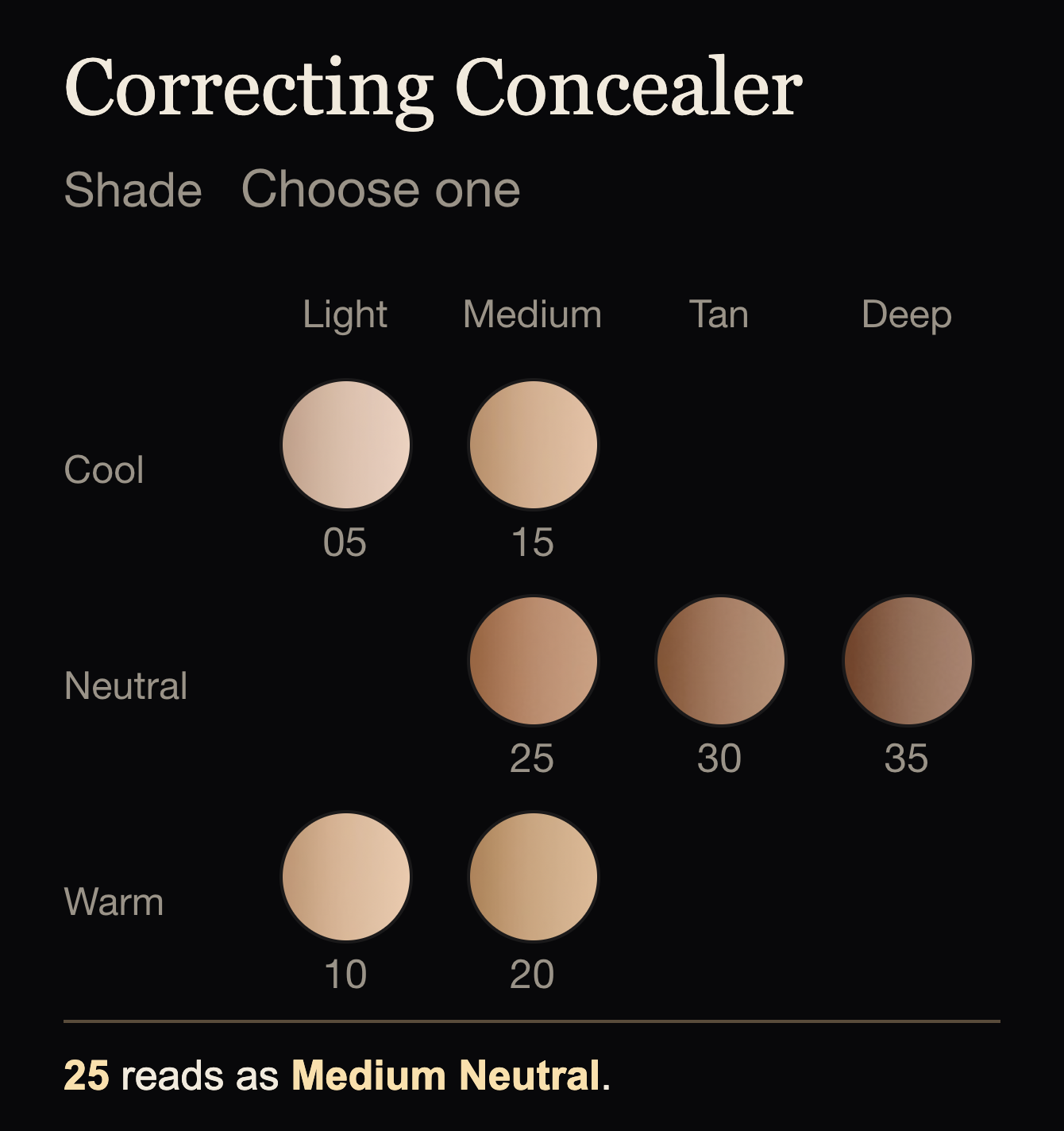
On La Routine, which we built for our REGARDE store, the Correcting Concealer card and step three both lead to a choice of seven shades. The address includes 05 Light Cool because that product hosts the chooser. The ?view=family ending opens the grid where the shopper can choose, for example, 20 Medium Warm and go to that shade’s own product page. Dropping the ending takes the shopper straight to 05. For a link promising the whole range, the first thing to verify is that shoppers actually get a choice. REGARDE’s La Routine
How to tell the repair worked
If the cart held the wrong ID, ask the theme maintainer to compare the ID sent by that button with the one you wrote down. If the button sent the first shade’s ID, check how the swatch updates the product form or Quick Add button. If the button sent the intended ID but the cart held a different one, compare the add response with the next cart update. When the cart holds the intended variant, use the drawer and full-cart results to pinpoint where the wrong name or photo appeared. After the change, repeat the original path on a phone. Switch shades twice, add the last one, and check that the selected name, cart ID and displayed item agree.
If you’d like us to fix the mismatch, share the link where the shopper started, the button they used and the shade that landed in the cart.
Get help with a Shopify storefront Explore FoldOps Web