WordPress
Where did my WordPress contact form email go?
If a customer saw “sent” and your inbox is empty, start with the inquiry you still have a chance to answer. Look for a saved entry at the time they submitted it, then check which address that particular form was set to notify. A successful WordPress mail call tells you the site processed the send request. To find out where the message went, you need the recipient and a matching mail record. WordPress mail reference
Look for the customer's message first
In WordPress admin, find the form used on the page where the customer submitted the inquiry. If it’s Contact Form 7 and Flamingo was saving entries for that form at the time, look under Flamingo → Inbound Messages. A saved copy may give the person handling inquiries enough to reply today. Contact Form 7 has no built-in message archive, so installing storage now won’t recover an earlier submission. Contact Form 7’s guide to saved messages
In the form’s Mail tab, read the To field for the business notification. Ask the person who answers inquiries which mailbox they actually open. If To names a group or forwarding address, check where it routes. A customer may have received an acknowledgment from the separate Mail (2) template while your team is still looking for its own copy. Contact Form 7 mail settings
Read the mail record for that recipient
Look up the recipient and submission time, including the time zone, in your mail provider’s activity log. Read the latest event for that message.
- Delivery failed permanently. Read the reason in the final failure or bounce record. An “unknown mailbox” response is a good reason to check the spelling and whether that address still exists.
- Delivery is delayed. If the provider is still retrying, follow the same message ID until it shows delivery or a final failure. Amazon SES delivery delays
- The receiving server accepted it. Search the destination mailbox, including Junk, and have the mailbox administrator check quarantine and forwarding rules. Give them the timestamp and message ID if available. A provider such as Postmark records delivery when the receiving server accepts the email. Postmark’s delivery event
- You can’t find an event. Check which mail service the form used and whether it kept logs at the time. A successful test from a mail plugin is worth keeping, but the next test should go through the same form the customer filled out.
One form, two different results
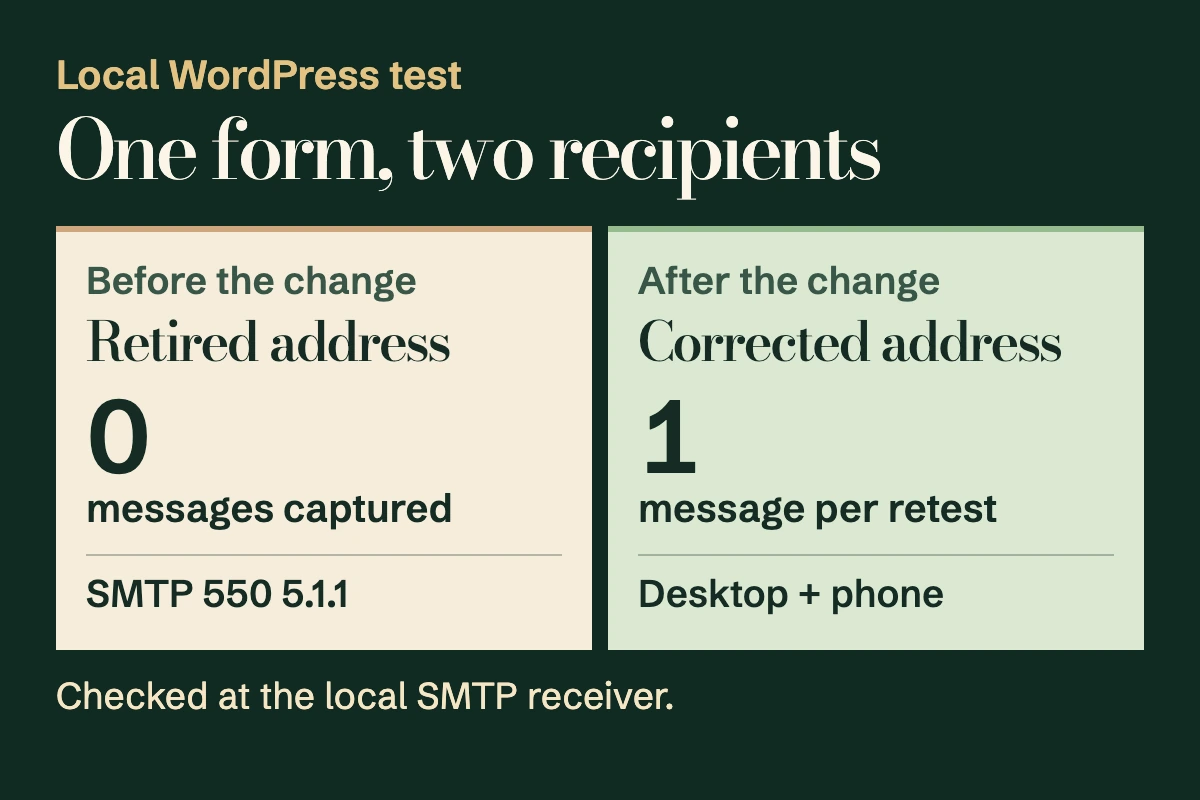
In our local WordPress workshop demo, the visitor asked whether a shelf could be made to match one in a café. The form was addressed to a retired test mailbox. The web request returned HTTP 200, the visitor saw a sending error, and the mail receiver returned 550 5.1.1 and captured zero messages.
We changed Mail → To and submitted once at desktop width and once at phone width. Each attempt produced one captured message. We could read the shelf dimensions, 32 × 14 inches, in both, and both carried the test visitor’s address in Reply-To. A local receiver let us verify exactly what WordPress sent. For a business mailbox, ask the person who answers inquiries to make the final check.
Download the form inbox test log (CSV). The first three rows record those attempts. Use a fresh row for your form, with a distinctive phrase in a fictional inquiry so your team can find the same message. On staging, route notifications and acknowledgments to test addresses. For the final check, agree a test with the person who owns the business mailbox. Have them find the phrase, read the details and open a reply draft to confirm it’s addressed to the test visitor.
If you’d like FoldOps to trace a missing notification, send the form URL and tell us which mailbox your team checks.
Get help with a WordPress form Explore FoldOps Web